The SCP file transfer protocol as implemented in SecureFX is a combination of the actual SCP protocol (an SSH remote execution process that is performed only when a file transfer upload or download operation is performed) and one or more separate shell/rexec mechanisms employed to retrieve directory information in support of presenting individuals with a file/folder view that can be used to list/navigate the file system of the connected device.
In cases which involve connecting to an SSH2 server running on a UNIX/Linux host, you may need to authenticate to the SSH2 server using a primary user account, but perform file system and file transfer activities as a secondary user account, such as root. In such cases all of the file listing/navigation commands as well as the remote execution of the SCP file transfer operation itself must be done within the context of the secondary user account using a command on the UNIX/Linux host known as "sudo".
In other cases, you may be connecting to network devices such as Cisco NEXUS or Juniper JunOS where an initial command must be sent to start a shell or enter a special administration environment in order to be in the right context to issue subsequent commands required to list available files/folders, rename files/folders, and so on.
To configure SecureFX for such scenarios, open the Session Options for your saved session configuration and:
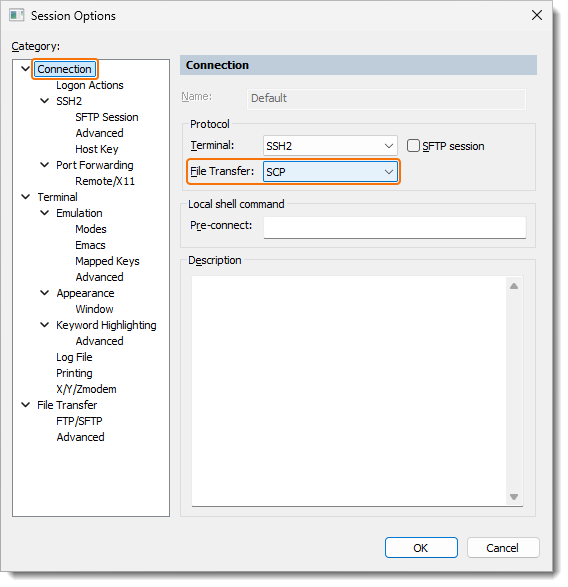
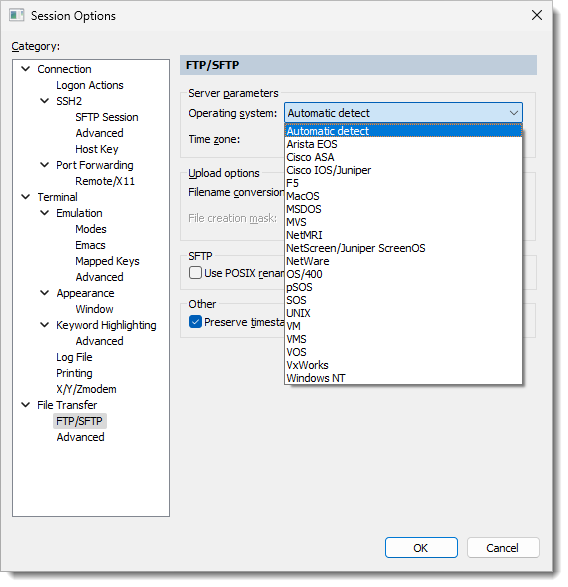
If the general device type you're connecting to is not included in the Operating system list, the following associations may work for you:
Cisco NEXUS: UNIX
JunOS: UNIX
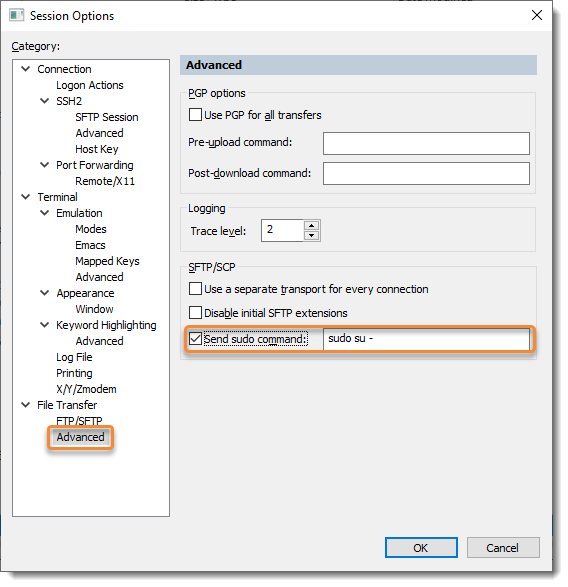
sudo su -
As a general rule, you'll want to enter the same command that you must run at the initial shell prompt in order be able to perform file listings on the device.
VanDyke Software uses cookies to give you the best online experience. Before continuing to use this site, please confirm that you agree to our use of cookies. Please see our Cookie Usage for details.
