SecureCRT supports the use of private keys in PPK format. To configure SecureCRT to use a .ppk key file, specify the path to the .ppk key file in the Public Key Properties window as described below:
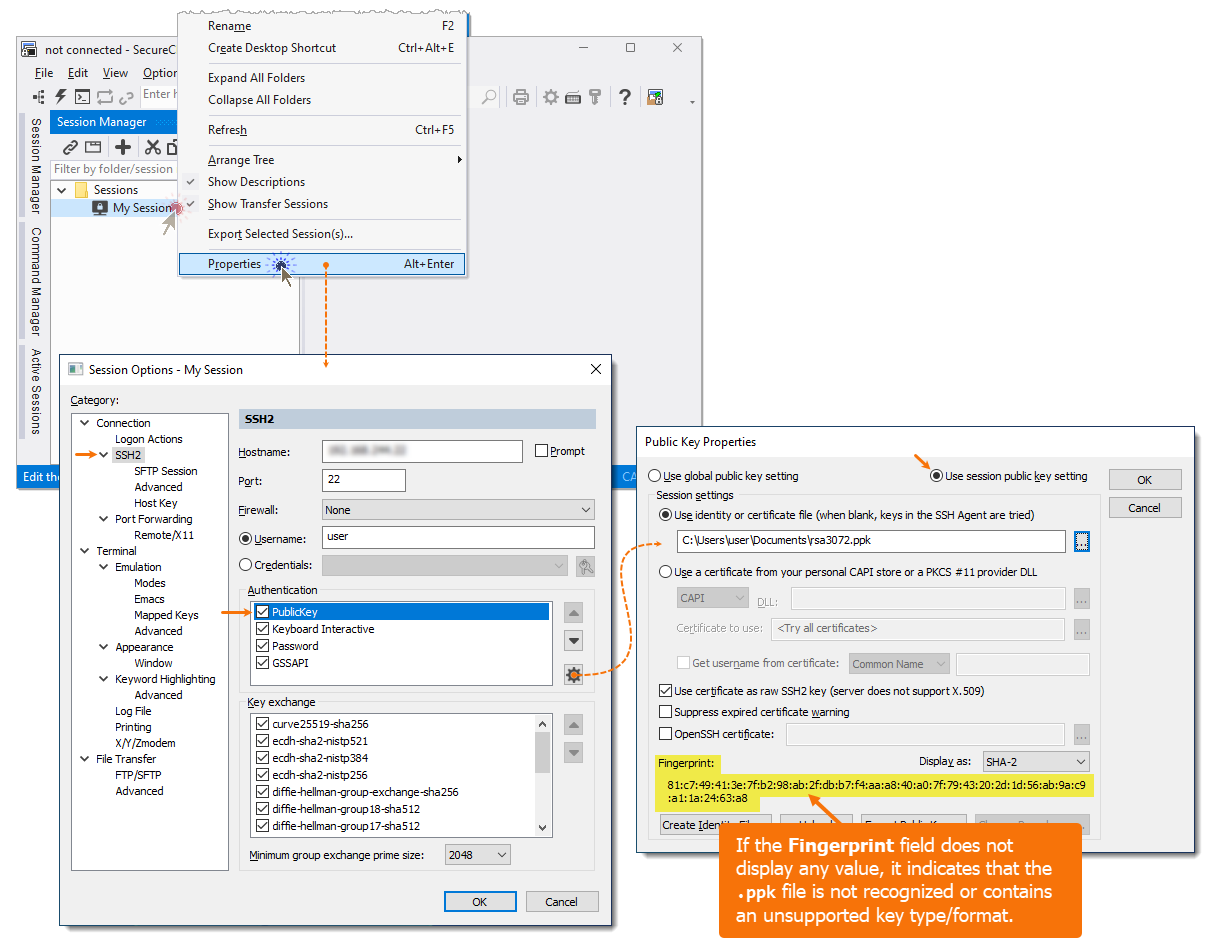
Hint:
If you need to use the same .ppk file for all or the majority of your saved sessions, you can select the Use global public key setting, specify the path to the desired .ppk file, and then make sure all of your saved sessions have the Use global public key setting also enabled. You can employ the power of editing the Default session to make these changes to all of your existing and future sessions. Here are some links to a tip and a video that provide more details about using the Default session to make mass changes to multiple sessions:
VanDyke Software uses cookies to give you the best online experience. Before continuing to use this site, please confirm that you agree to our use of cookies. Please see our Cookie Usage for details.
